
How to Extract Invoice Data from PDFs into Google Sheets (Free Tool)
Manual invoice entry into Google Sheets is slow, error-prone, and leaves no audit trail. At 50 invoices a month, you’re spending 6+ hours on copy-paste. Any transposed digit or missed VAT number won’t surface until a client query or audit forces a trace.
The other problem is provenance. When a figure in your Sheet is questioned six months later, “I typed it from the invoice” isn’t an answer that satisfies an auditor. Without a direct link from each row back to its source document, the chain of evidence is broken.
This post covers how to extract invoice data from PDF to Google Sheets automatically: what the options are, how structured extraction differs from basic OCR, and what to look for to end up with an audit-ready record.
OCR for Google Sheets: What Actually Works for Invoices
Basic OCR converts a scanned image or PDF into readable text. Tools like Adobe Acrobat, Google Drive’s built-in PDF viewer, and various free OCR utilities do this, but the result is usually a wall of text that preserves words while losing structure. You can read the content, but you still have to find and copy each figure manually.
Invoice-specific extraction tools go further: they identify which text is a total, which is a date, and output structured fields rather than raw text. The result isn’t a wall of words you still have to sort through. It’s named fields mapped directly to your spreadsheet columns.
The fields that matter for accounting use:
- Supplier name and VAT/tax registration number
- Invoice number and issue date
- Line items: description, quantity, unit price
- Net amount, tax amount, total amount
- Payment terms and due date
- Purchase order number (where present)
Generic OCR tools fall short here because they weren’t trained on invoice structure. They’ll give you text, but not the right text in the right field. The result still requires manual sorting. You’ve saved some typing but not the cognitive work.
What to Look for in an Invoice Extraction Tool
Not all “automated extraction” claims mean the same thing in practice. Before picking a tool, check it against five criteria:
- Structured fields, not raw text. It should output named fields (invoice number, total, VAT amount) mapped to columns, not a text dump you still have to parse.
- Source traceability. Can you get from an extracted figure back to the exact place it came from in the original document, or only back to the uploaded file as a whole?
- Format flexibility. Does it require a consistent template across suppliers, or can it handle digital PDFs, scans, and photographed receipts without you reconfiguring anything?
- Where the data lands. Some tools (Dext, AutoEntry, Hubdoc) sync to an accounting platform like Xero or QuickBooks. Others, including Sheetminer, write directly into Google Sheets. Pick based on where your workflow actually lives, not which tool has the most features on paper.
- Pricing that matches your volume. Per-seat subscriptions penalize small teams with high document volume; usage-based pricing with non-expiring credits tends to track actual usage more fairly.
3 Ways to Get Invoice Data into Google Sheets
- Manual copy-paste. Open the PDF, find the field, type it in. Fine at low volume (roughly under 10 invoices a month). Error risk compounds as volume increases, and there’s no source link unless you add one yourself.
- Adobe Acrobat’s PDF export. Works reasonably well for digital PDFs with embedded text, where the original document was generated electronically rather than scanned. Scanned documents and complex multi-column layouts produce poor results, and the output is a raw export, not structured fields mapped to your columns.
- A purpose-built Google Sheets add-on. Extracts structured fields and writes them directly to your Sheet with source references. This is the category Sheetminer sits in (20 free tokens on signup). Tools like Dext and Hubdoc serve a similar extraction purpose but push data to accounting software, not Google Sheets, see our Dext alternative and AutoEntry alternative posts if that’s the gap you’re trying to close.
How to Extract Invoice Data Automatically Using a Google Sheets Add-on (Step-by-Step)
The following steps use Sheetminer, which installs as a Google Sheets add-on and runs entirely within Google Sheets.
Step 1: Install Sheetminer from Google Workspace Marketplace
Open any Google Sheet, go to Extensions → Add-ons → Get add-ons, and search for Sheetminer. Install it and grant the requested permissions (access to your Drive and Sheets, required to read your PDF files and write to your spreadsheet).
Once installed, Sheetminer appears under Extensions → Sheetminer in any Sheet you open.
Step 2: Select files from Google Drive
Open the Sheetminer sidebar from the Extensions menu. Use the file picker to select invoice PDFs from Google Drive. You can select multiple files at once for batch processing.
Sheetminer handles PDFs (both digital and scanned), JPG and PNG image files, and multi-page documents. Varying invoice formats across suppliers are fine. You don’t need a uniform template.
Step 3: Select the fields you want to extract
You select the regions of the document that contain the fields you want. Sheetminer labels them automatically and extracts the values from those regions. Your previous selections are saved, so if you extracted the same fields last time (invoice number, date, total), they’ll be pre-selected when you process the next document. The second extraction onwards is faster, regardless of whether your suppliers use different layouts.
Step 4: Review extracted values with source highlighting
Before writing to the sheet, Sheetminer shows you the extracted values alongside the source document, with each value highlighted at its origin location in the PDF. This review step is important: it lets you catch extraction errors before they reach your spreadsheet, and it builds familiarity with how the tool is reading each document.
For well-structured digital PDFs, accuracy is high enough that you’ll rarely need to correct anything. Scanned or handwritten documents benefit from closer review.
Step 5: Write to your Sheet, with source references
Confirm the extraction and Sheetminer writes each field to the corresponding column in your Sheet. Each extracted value stores a reference to its source document. To trace a value back, select any cell and use the sidebar’s source lookup to open the original document.
Audit Trail: Automatic Source Tracing
Sheetminer automatically stores a source reference for every extracted value. To verify any figure: select the cell, click “Inspect cell source” in the sidebar, and the original document opens with the field highlighted on the page.
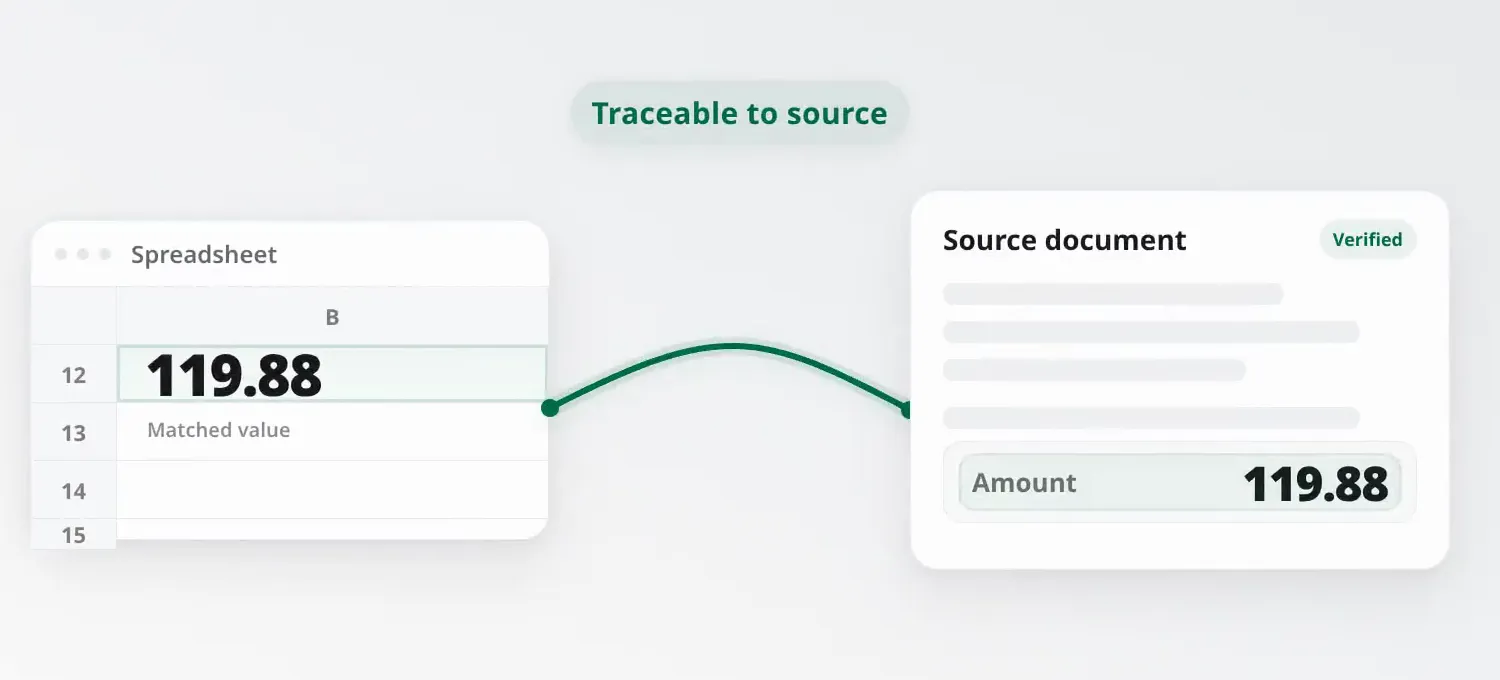
Each extracted value keeps a live link back to its verified source document.
Because source tracing uses Google Sheets’ built-in sharing, anyone with access to the Sheet and the Drive folder containing the source files can verify sources themselves. No extra permissions or logins needed.
For a deeper look at setting up an audit-ready invoice workflow in Google Sheets, including a free template, see How to Build an Invoice Audit Trail in Google Sheets.
Common Invoice Formats Sheetminer Handles
A common concern when evaluating extraction tools is whether they’ll handle your suppliers’ specific invoice formats. Sheetminer processes:
- Digital PDFs: invoices exported directly from accounting software (Xero, FreshBooks, QuickBooks). These are the cleanest to extract from.
- Scanned PDFs: paper invoices that have been scanned. Quality depends on scan resolution, but standard office scanning is sufficient.
- Image files: JPG and PNG invoices, common from suppliers who photograph their receipts or send mobile-generated invoices.
- Handwritten documents: less common in B2B contexts but handled by Sheetminer’s AI extraction. Accuracy is lower than for typed documents; the review step matters more here.
- Multi-page invoices: Sheetminer processes the full document, not just the first page.
- Variable layouts: you don’t need a uniform format from all suppliers. You select the fields you want each time, and previous selections are pre-filled to speed things up.
Multi-Currency, VAT, and International Invoices
Suppliers don’t all invoice in the same currency or format, and extraction tools need to handle that without manual reformatting. A few things worth checking before committing to a workflow:
- Currency symbols and formats. A total of “1.234,56 €” and “€1,234.56” represent the same amount but use opposite decimal and thousands separators. Structured extraction should recognize the value correctly regardless of which convention the supplier uses, rather than misreading a decimal point as a thousands separator.
- VAT and tax ID formats vary by country. An Irish VAT number, a German USt-IdNr., and a French numéro de TVA all follow different formats. Extracting the field as “tax registration number” rather than assuming a single format keeps this consistent across a supplier base spanning multiple countries.
- Language. Sheetminer’s extraction handles invoices in major European languages (Spanish, French, German, Dutch, Italian, Portuguese) in addition to English. If your firm processes invoices in a specific non-English language regularly, test a sample batch before relying on it for production volume.
Common Mistakes When Automating Invoice Extraction
A few patterns show up repeatedly when firms move from manual entry to an automated tool for the first time:
- Skipping the review step entirely. Automated extraction is fast, but for scanned or handwritten documents, the review-before-write step exists for a reason. Skipping it on the assumption that extraction is always accurate is how an OCR misread (a “0” read as an “8,” for example) ends up in your books.
- Blending net, tax, and total into a single column. This makes both manual and automated entry harder to verify; keep these as separate fields so a reconciliation check can catch a miscalculation.
- Treating the uploaded file as the audit trail. A file sitting in a Drive folder somewhere isn’t the same as a direct reference from the specific cell to the specific field. If a tool only gets you to “the file exists,” you still have field-level tracing to do by hand.
- Assuming one tool fits every document type. Digital PDFs, scans, and handwritten documents have different accuracy profiles. A tool that’s excellent on clean digital invoices may need closer review on scanned or handwritten ones, plan your review effort accordingly rather than treating all documents as equally reliable.
Setting Up Your Sheet for Audit-Ready Processing
Extraction is only half the workflow. The columns you extract into matter just as much for whether the result holds up under review later. At minimum, keep supplier identity, invoice number and date, net/tax/total as separate fields, approval status, and a source document link as distinct columns rather than folding several of these into free-text notes.
If you’re setting this up from scratch, How to Build an Invoice Audit Trail in Google Sheets covers the full column structure and includes a free downloadable template you can import directly, along with setup steps like locking historical rows and adding data validation on payment status.
Frequently Asked Questions
Is there an OCR tool for Google Sheets invoices? Yes. Sheetminer uses OCR combined with structured extraction to identify specific fields (totals, dates, VAT numbers, invoice numbers) and writes them directly to named columns in your Google Sheet. Unlike generic OCR tools that output raw text, Sheetminer maps extracted values to your spreadsheet structure automatically.
Is there a free way to extract invoice data into Google Sheets? Sheetminer gives you 20 free tokens on signup (one-off, they never expire), enough to evaluate the tool properly. Above that, paid subscription plans give you a monthly token allocation. Tokens never expire, even after cancellation. See the pricing page for current rates.
Does this work for non-English invoices? Sheetminer’s extraction handles invoices in major European languages: Spanish, French, German, Dutch, Italian, Portuguese. For languages outside that set, results will vary. If your firm processes invoices in a specific non-English language regularly, test on a sample batch before committing.
What if I only need a single value from a document? That’s what the Snip tool is for. It extracts individual fields into individual cells, so you can pull exactly what you need (a total, a date, a reference number) without extracting the full document. Each extracted value still links back to the source file. Useful when you need flexibility over what goes where.
How accurate is the extraction? For well-formatted digital PDFs, most firms see error rates well below 1%. Scanned and handwritten documents are lower; accuracy depends on scan quality and how consistently the document is laid out. The review step exists precisely because no automated extraction is perfectly accurate across all document types.
What’s the difference between extraction and OCR? OCR (optical character recognition) converts an image or scan into readable text, it’s a building block, not the end result. Structured extraction goes a step further, identifying which piece of recognized text is a total, a date, or a VAT number, and mapping each to the correct column. A tool can use OCR internally while still requiring you to sort the output by hand if it doesn’t also do structured field mapping.
Can I extract data from documents other than invoices? Yes. The same structured-extraction and source-tracing approach applies to receipts, contracts, tax documents, and other PDFs or scanned images, not just invoices. The Snip tool in particular works on any document type since it extracts whatever value you draw a box around.
Further Reading
This post covers the core extraction workflow. For related topics:
- Dext vs AutoEntry vs Google Sheets — full three-way comparison if your workflow might end in an accounting platform instead.
- Best Dext Alternative for Google Sheets and Best AutoEntry Alternative for Google Sheets — focused comparisons against each tool individually.
- DataSnipper Alternative for Google Sheets — if you’re coming from an Excel-based audit workflow rather than an accounting platform.
- How to Build an Invoice Audit Trail in Google Sheets — the column structure and free template for the audit-ready side of this workflow.
- 5 Ways Accountants Waste Time on Invoice Data Entry — a closer look at where manual entry time actually goes.
Try Sheetminer Free
20 free tokens on signup, no credit card. If your end destination is Xero, QuickBooks, or Sage rather than Google Sheets, see our Dext vs AutoEntry vs Google Sheets comparison.
Install Sheetminer free →